Tutorial 6 of 6
Import from Confluence and Markdown, export and share links
Intermediate 7 min
Bring pages in from a Confluence HTML export or Markdown files, export pages and spaces as Markdown, HTML or PDF, and share a read-only page link without a server.
Wikinest reads and writes open formats, so your pages never get stuck in it. This tutorial covers the ways in and out.
Import a Confluence space
In Confluence, open the space and choose Space settings → Export space → HTML. You get a ZIP file. In Wikinest, choose Import → Confluence export…, pick where the pages should go (a new space or an existing one) and choose the ZIP. Single exported .html page files work too.
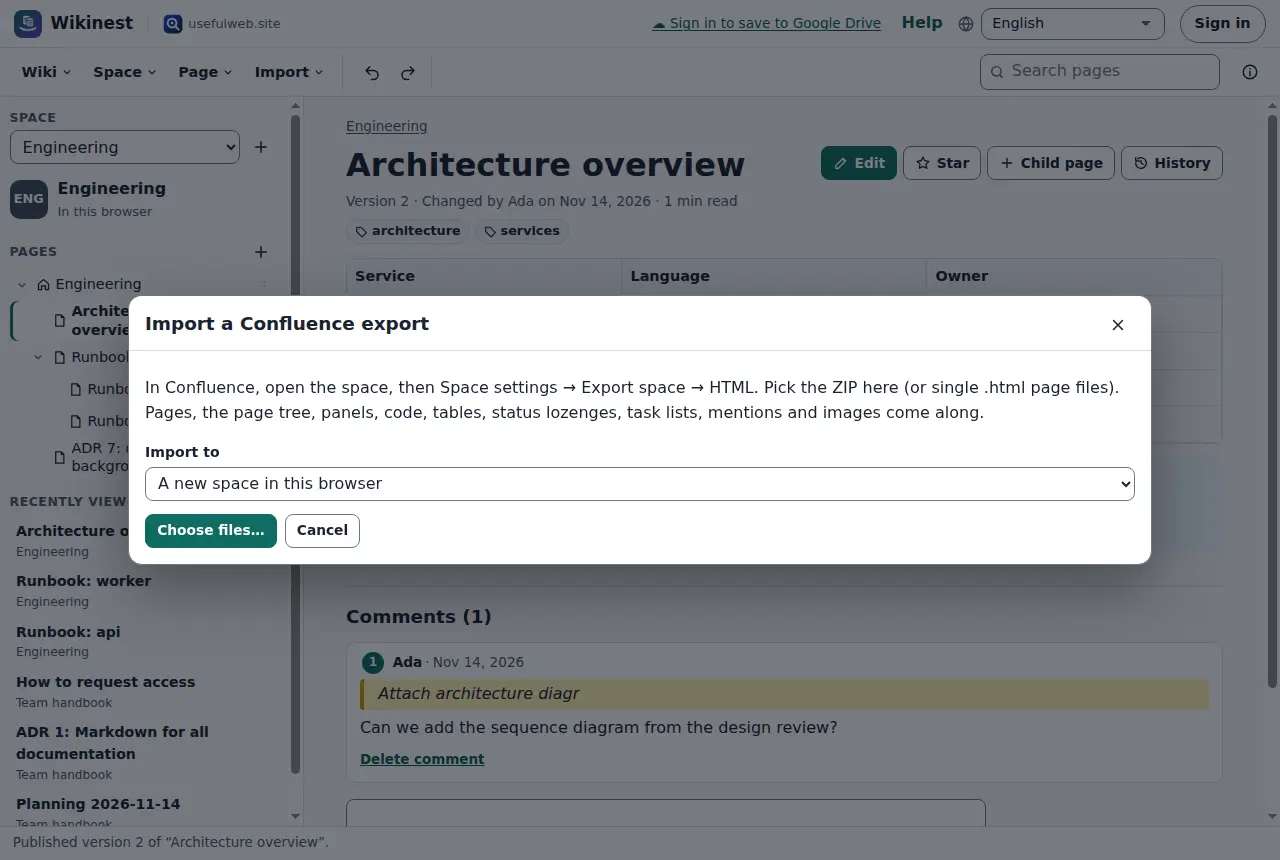
Wikinest rebuilds the page tree from the breadcrumbs and converts every page to Markdown:
| Confluence | Wikinest |
|---|---|
| Info, note, tip, warning macro | info, warning, success, error panel |
| Code macro | code block with the language |
| Status macro | status lozenge |
| Expand macro | expand section |
| Task list | task list |
| User link | mention |
| Table of contents, children display | {{toc}}, {{children}} |
| Link to an exported page | page link [[…]] |
| Image attachment | image attached to the page |
When it is done, the status line counts the panels, code blocks, tables and images. It also tells you about macros it did not know, whose text is kept.
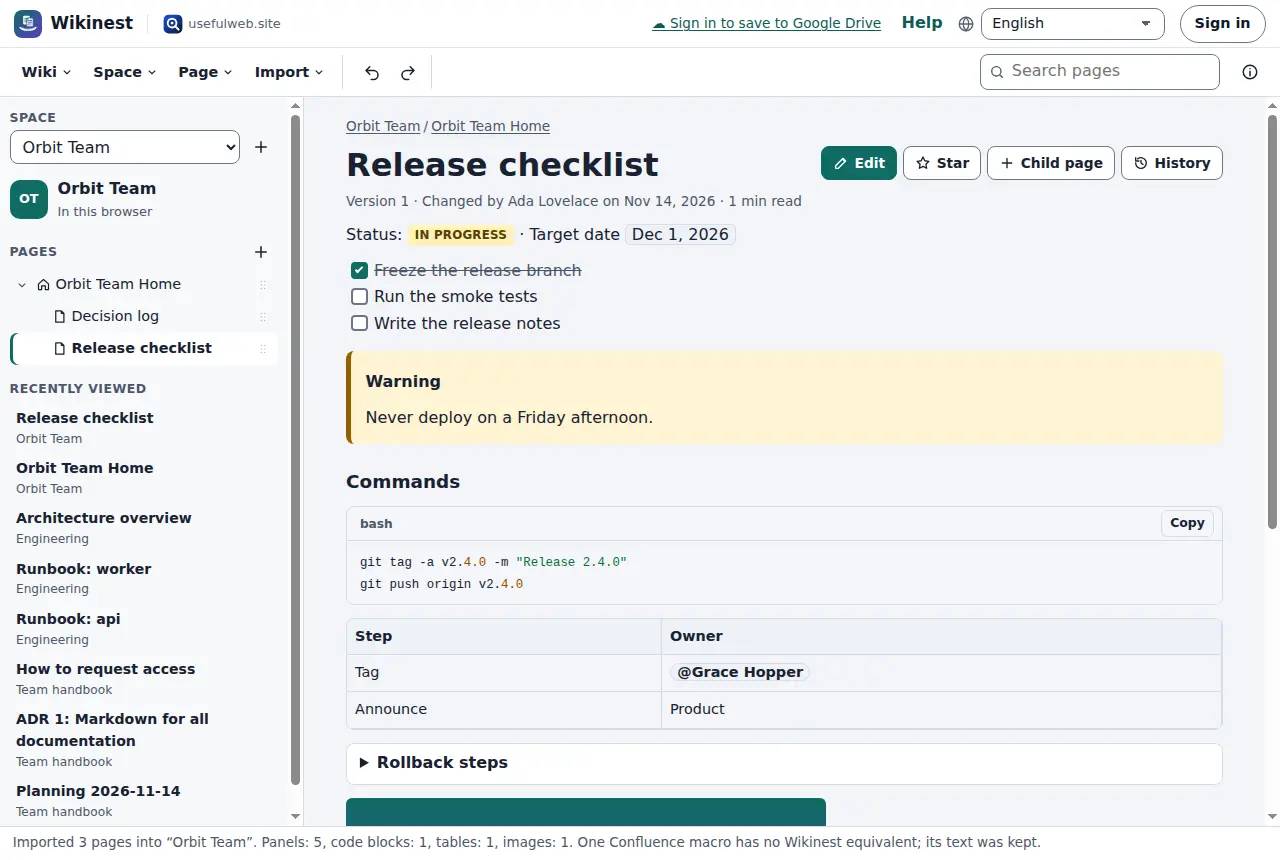
Import Markdown
Import → Markdown files or ZIP… takes .md files or a ZIP of a folder. The title comes from the front matter (title:), the first # heading or the file name. Folders become parent pages, and an index.md or README.md becomes the page of its folder. labels: in the front matter become labels. Import → Wikinest project file… opens a .wikinest.json file; your current wiki stays under Wiki → Recent wikis….
Export
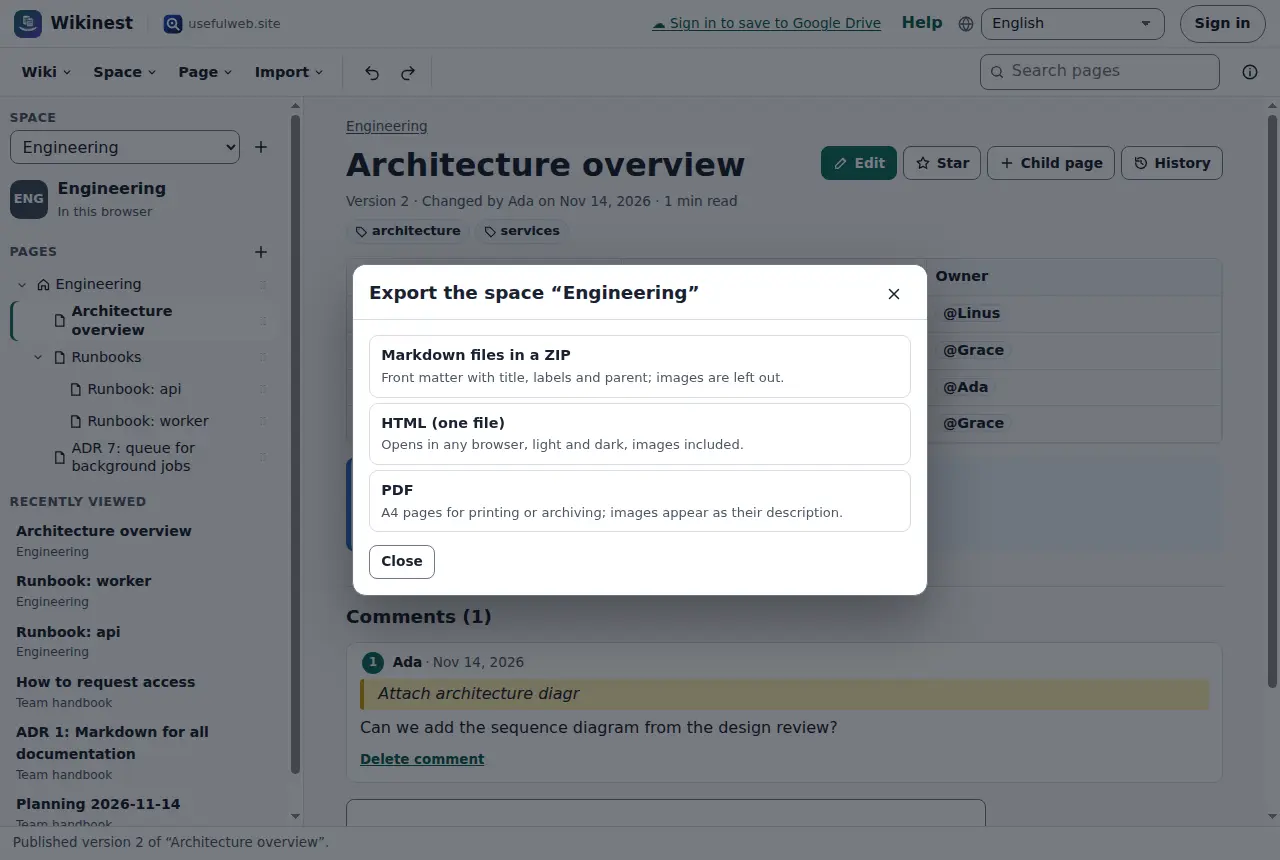
Page → Export page… and Space → Export space… offer three formats:
- Markdown: one
.mdfile per page, or a ZIP for a space, with front matter for title, labels and parent, so it can be imported again - HTML: one file that opens in any browser, light and dark, with images included
- PDF: A4 pages for printing or archiving; images appear as their description
Share a read-only link
Page → Share a read-only link… creates a link that holds a compressed copy of the page after the # sign. Browsers never send that part to a server, so the page goes straight from your link to the person who opens it. They see the page read-only, with a button to save a copy to their own wiki.
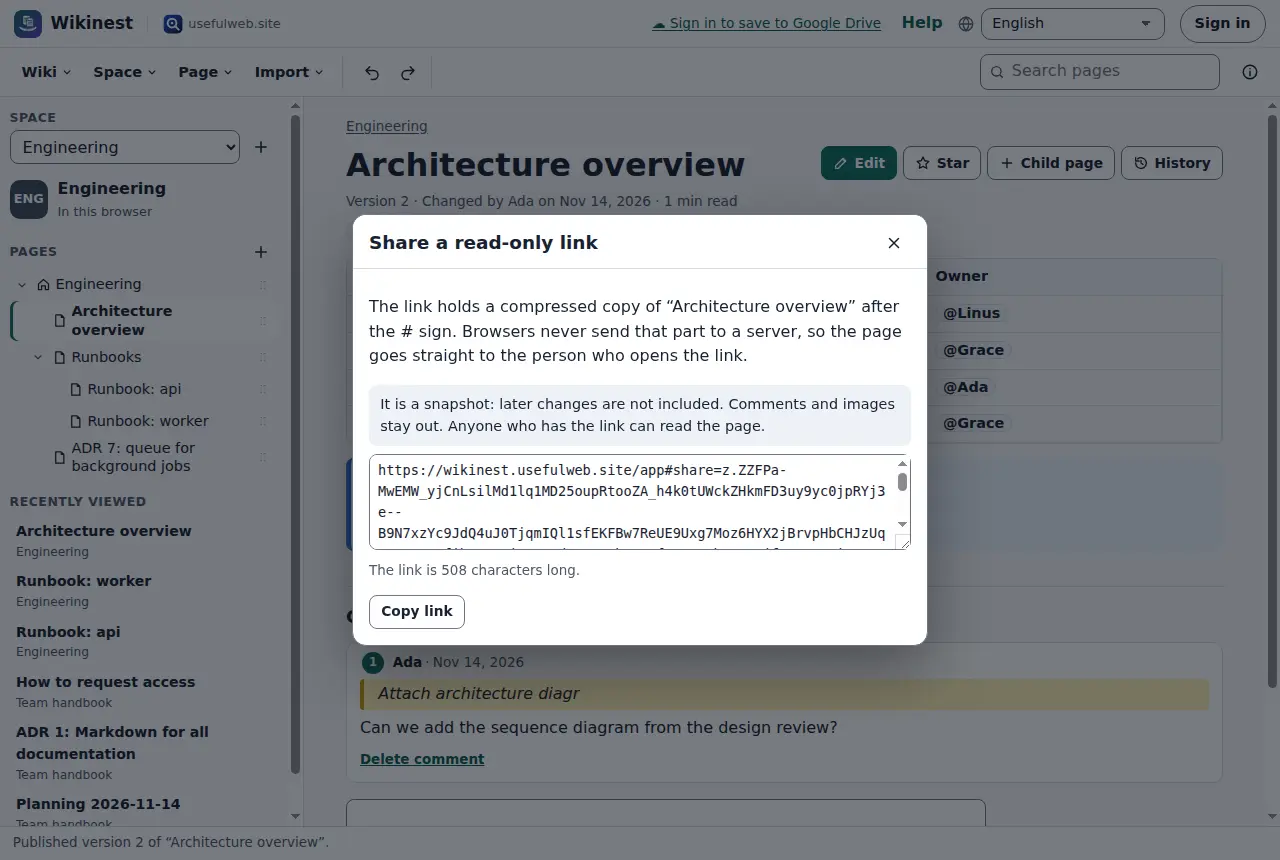
The link is a snapshot: later changes are not included, and comments and images stay out. Anyone who has the link can read the page, so do not use it for confidential pages. For a team, a shared space with permissions is the better choice.
Use pages in other apps
On usefulweb you can hand a page to another app: Page → Open the page Markdown in another app… or …PDF in another app…. Wikinest can also receive Markdown from other apps and adds it as a new page. In the other direction, {{embed …}} shows a Laneboard board, a Trackwell issue or a Timeslice report on a page as a card.
Ready to try it?