Tutorial 1 of 6
Your first wiki in five minutes
Beginner 5 min
Open a wiki template, find your way around spaces and the page tree, create pages from templates and keep everything in your browser — the basics of Wikinest.
Wikinest is a knowledge base. Your wiki holds spaces, for example one per team or project. Each space has a page tree: pages can have child pages, which can have their own children, as deep as you need. Without an account everything stays in this browser. Nothing is sent to a server, and the wiki is saved as you type.
Start from a template
Choose Wiki → New wiki… to pick one of four wikis that are already filled in:
- Team handbook — rituals, meeting notes, a retrospective, a decision record, how-tos and an onboarding plan
- Product docs — requirements with user stories, release notes, research interviews and sync notes
- Engineering wiki — architecture overview, runbooks with commands, and an architecture decision record
- Personal notes — a private knowledge base with a reading list, ideas and code snippets
You can also choose Empty wiki to start with one space and a home page. Your earlier wiki stays under Wiki → Recent wikis….
Find your way around
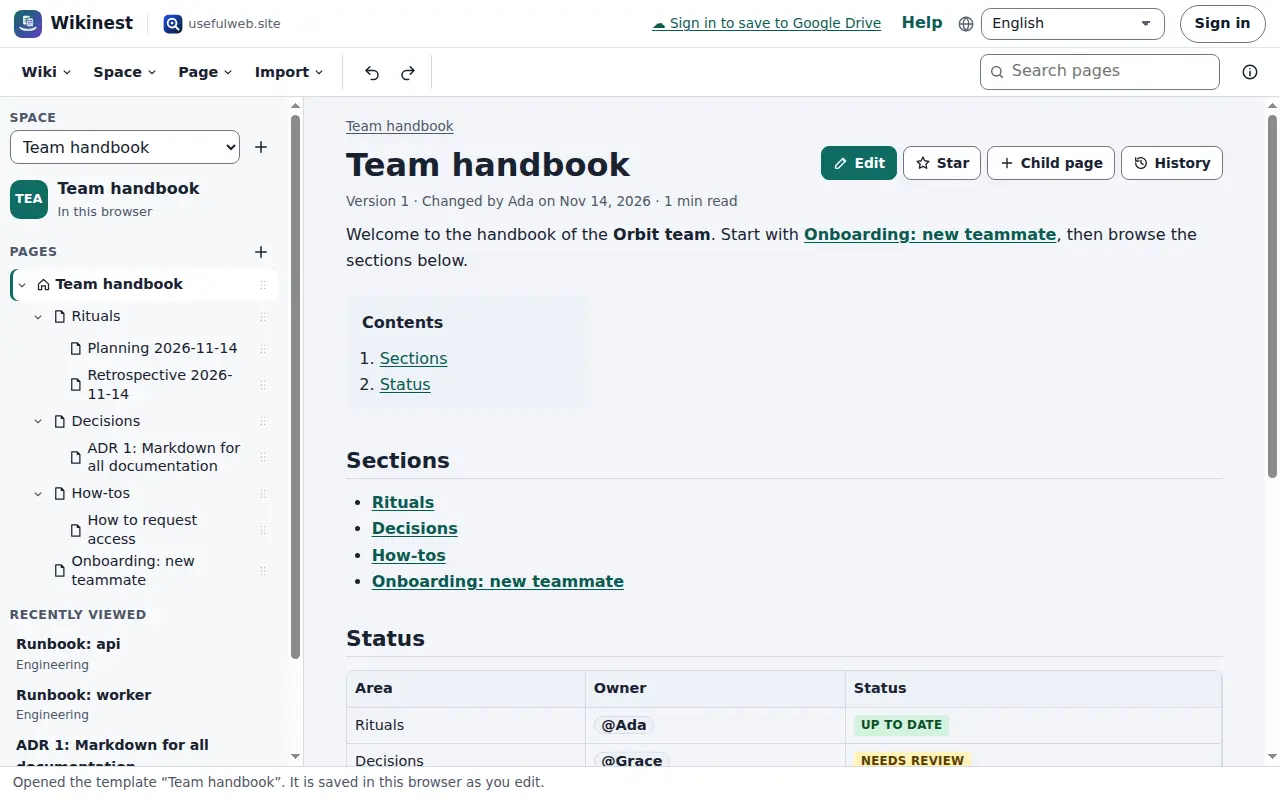
The left side shows the space picker at the top, the space's name and colour, the page tree and the pages you viewed recently. Select a page title to open it. The small arrow next to a title folds its children in or out.
On the right you see the page: the breadcrumbs (the space and the pages above this one), the title, the version line and the labels, then the content. The buttons next to the title let you Edit, Star the page as a favourite, add a Child page or open the History.
With the keyboard, Tab moves into the tree. The arrow keys go up and down, and Right and Left open and close a branch. Enter opens the page. Press ? at any time to see all keyboard shortcuts.
Create a page
Choose Child page (or press C) to add a page below the open one. The dialog asks for a title, the parent page and a template:
- Blank page, Meeting notes, How-to guide, Decision record (ADR)
- Retrospective, Product requirements, Runbook, Onboarding plan
Each template comes with headings, tables and checklists, so you only fill in the blanks. If you leave the title empty, the template's title is used, for example Meeting notes 2026-11-24.
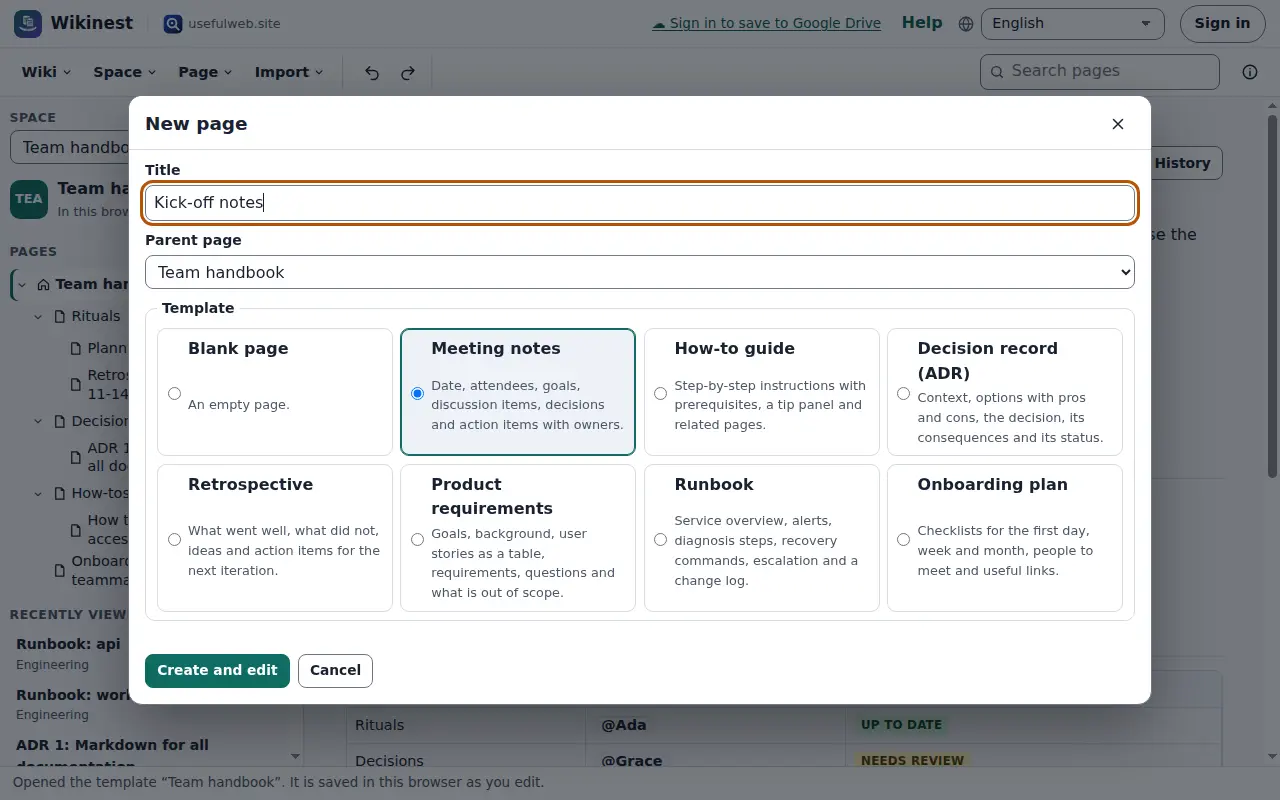
Create and edit opens the new page in the editor straight away. The next tutorial shows the editor in detail.
Spaces
Space → New space… creates another space with its own page tree. A space has a name, an optional description, a colour and a short key such as ENG. The key appears in links to pages of other spaces, for example [[ENG:Runbook: api]]. You can change the name, key, colour and home page later under Space → Space settings….
Saving and backups
Wikinest saves every change in this browser, and Undo and Redo (Ctrl+Z, Ctrl+Shift+Z) work for pages in this browser. To keep a copy outside the browser, choose Wiki → Save file (Ctrl+S). You get a .wikinest.json file you can open again on any computer with Wiki → Open file…. Browsers can delete site data when space runs low, so save a file from time to time.
Ready to try it?