Tutorial 2 of 6
Writing pages with the editor, macros and page links
Beginner 8 min
Write in Markdown with a toolbar and live preview, link pages with [[, mention people with @, and add panels, status labels, tables, code, task lists and a table of contents.
Pages in Wikinest are written in Markdown, a plain-text format where **bold** becomes bold and ## Title becomes a heading. You do not need to learn it first: the toolbar inserts everything for you, and the preview shows the result while you type.
Open the editor
Choose Edit next to the page title, or press E. The editor has the title at the top, then the toolbar, then two panes: the Markdown text on the left and the preview on the right. Side by side, Write and Preview switch between both panes, the text only or the preview only. On a phone the editor shows one pane at a time.
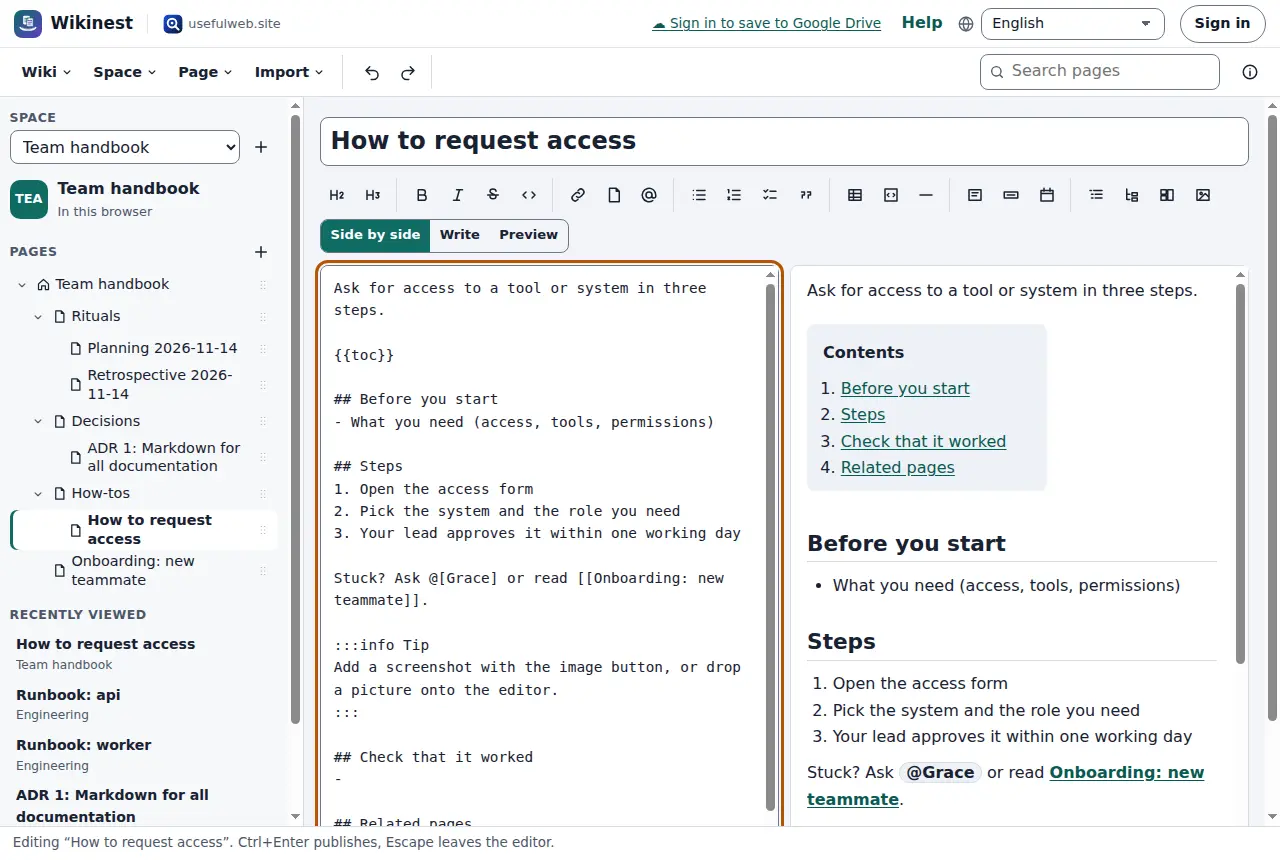
At the bottom you add labels (separated by commas) and a short note about what you changed. The note appears in the version history. Publish (Ctrl+Enter) saves a new version. Cancel (Escape) leaves the editor and asks first if you changed something.
While you write, Wikinest keeps a draft in this browser. If the tab closes before you publish, the next Edit offers Continue the draft or Start from the published page.
The toolbar
The toolbar is one row of buttons with the arrow keys moving between them (Tab jumps to the next group of controls). It has four groups:
- Formatting: heading 2 and 3, bold, italic, strikethrough, inline code
- Insert: link, link to a page, mention someone, image
- Lists: bulleted, numbered, task list, quote
- Blocks: table, code block, horizontal rule, info/success/warning/error panels, expand section, status lozenge, date, table of contents, list of child pages, embed
Ctrl+B, Ctrl+I and Ctrl+K work as in other editors. Selected text is wrapped, for example in **…** for bold.
Link pages and mention people
Type two square brackets [[ and start typing a title. A list of matching pages appears, also from other spaces. Arrow keys choose, Enter or Tab inserts. The link is written as [[Page title]]. Pages in other spaces get their key: [[ENG:Runbook: api]].
![Typing [[Onb in the editor shows the suggestion Onboarding: new teammate with the space key TEAM](/static/apps/wikinest/img/tutorials/02-page-link.webp)
A link to a page that does not exist yet is shown with a dashed underline. Select it to create the page with that title. Mentions work the same way: type @[ and a name. In a space in this browser the list suggests people already mentioned in the space; in a shared space it shows the members of the workspace.
Macros
Some building blocks go beyond plain Markdown:
{status:green|Done}shows a coloured label. The colours are grey, blue, green, yellow, red and purple.{date:2026-11-24}shows a date in your language's format.:::info Title…:::makes a panel. The other kinds are success, warning and error.:::expand Title…:::hides text until the reader opens it.{{toc}}builds a table of contents from the headings.{{toc 2}}stops at level 2.{{children}}lists the child pages and stays up to date when you add pages.{{embed https://…}}shows a share link or workspace link of a Laneboard board, a Trackwell issue or a Timeslice report as a read-only card.
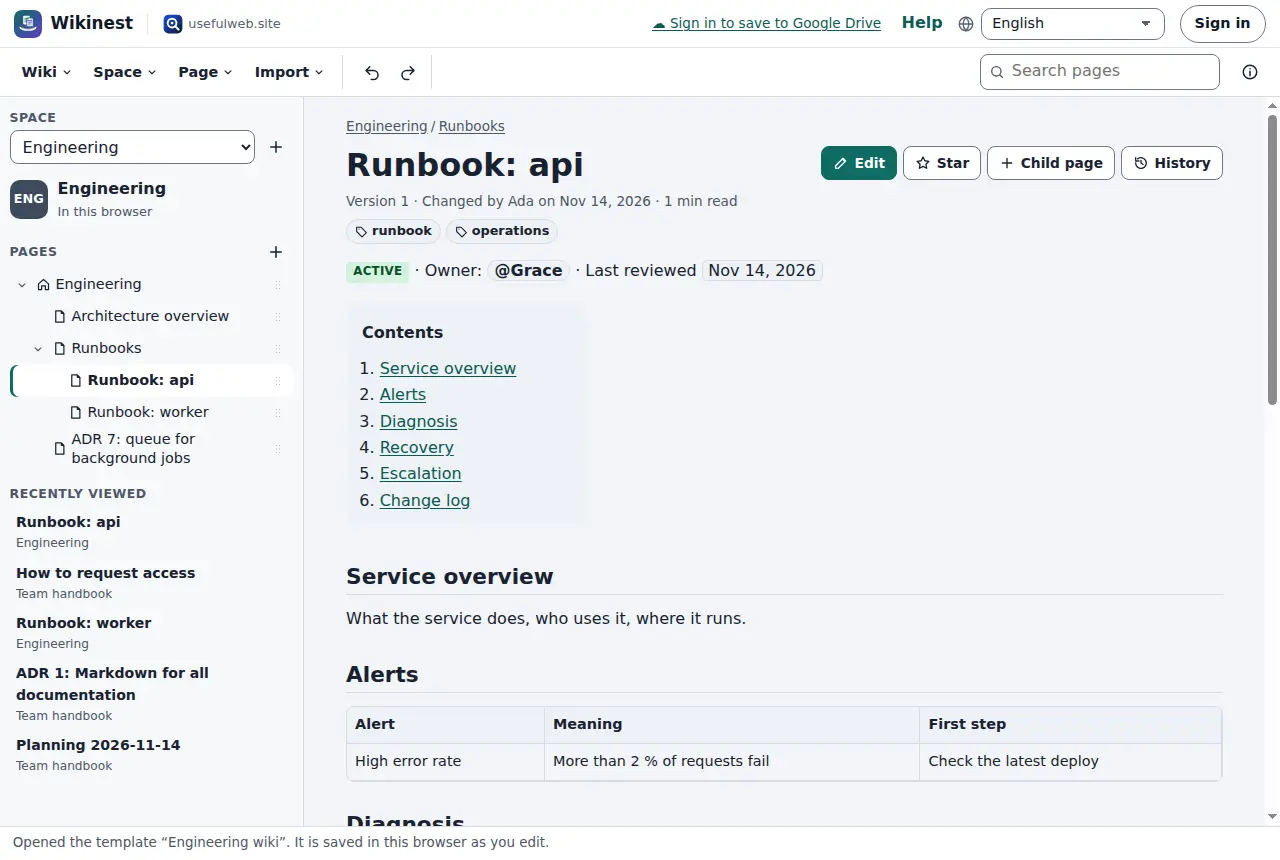
Code blocks get colours for common languages. Write the language after the three backticks, for example sh for shell code. Each code block has a Copy button. In a task list (- [ ]) readers can tick boxes directly on the page if they may edit it. That saves a new version.
Images
Use the image button, paste a picture or drop it onto the text. PNG, JPEG, GIF and WebP are accepted. Images become attachments of the page and are written as . Always write a short description: screen reader users hear it, and the PDF export shows it instead of the picture.
Ready to try it?